
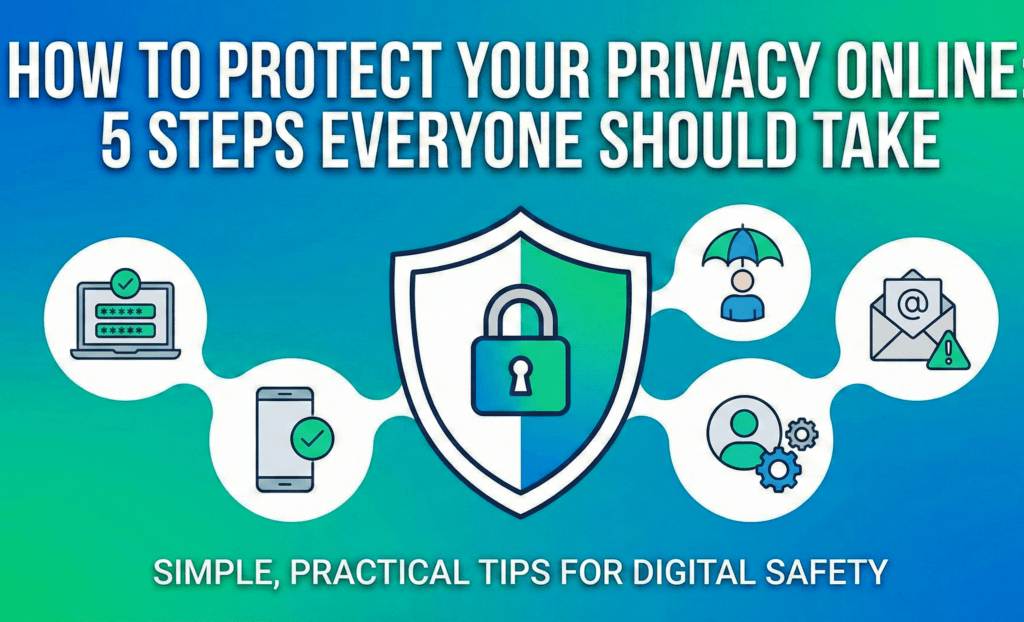
Your digital life is more public than you think. Every website visited, photo uploaded, and comment left behind adds to your digital footprint a record of your online actions that can be exploited by advertisers, data brokers and criminals. In 2025, data breaches and privacy scandals remain regular headlines. Protecting your privacy has moved beyond convenience; it’s now a basic survival skill. Fortunately, you don’t need to be a security expert to reduce your exposure. By adopting a handful of proven practices, you can significantly minimize what strangers and corporations know about you.
This comprehensive guide explains five essential steps to protect your privacy online. Each step draws on research from trusted cyber security organizations such as the U.S. Federal Trade Commission (FTC), the Electronic Frontier Foundation (EFF) and university researchers. Whether you’re concerned about identity theft, intrusive advertising or targeted scams, the following steps will help you take back control of your personal information.
1. Create Strong, Unique Passwords and Use Two Factor Authentication
Every online account is protected primarily by a password, yet many people still reuse simple passwords across services. Weak credentials are one of the leading causes of data breaches. The FTC advises that strong passwords should be long (at least 15 characters), combine uppercase and lowercase letters, numbers and symbols, and avoid common phrases or song lyrics. If remembering such complex passwords is difficult, the FTC recommends using a passphrase multiple random words separated by spaces to generate length and randomness. Research from the EFF’s Surveillance Self‑Defense (SSD) project supports this approach, noting that long, random passwords protect against automated password‑cracking programs; five randomly chosen words (64 bits of entropy) can defend against typical criminal attackers, while six words protect against even state‑level adversaries.
Because humans are poor at creating and remembering random strings, a password manager is indispensable. Password managers generate and store unique credentials for every site. They can automatically fill in your credentials, making it easier to use long, unique passwords without memorizing them. The FTC suggests that the password manager’s own master password must be extremely strong and secret. Password managers also help you audit old or duplicate accounts, identify weak passwords and update them.
Even the strongest password can be compromised if an attacker obtains it through phishing or a data breach. Two‑factor authentication (2FA) adds another layer of defense. By requiring a second factor typically something you possess, such as a one‑time code sent via SMS, an authenticator app or a hardware security key 2FA prevents attackers who have stolen your password from logging in. Authenticator apps or hardware keys are more secure than SMS codes because they cannot be intercepted by SIM‑swap attackers or text‑message forwarding. Many major services (email, social media, banking) offer 2FA options; enabling them wherever possible drastically reduces your risk of unauthorized access.
Key actions
- Use a password manager to generate and store a unique, long password for every account. Aim for at least 15 characters and random words.
- Enable two factor authentication on all important services. Prefer authenticator apps or hardware tokens over SMS codes.
- For accounts that require security questions, choose questions only you can answer and treat your responses like passwords random and unique.
2. Keep Your Software and Devices Updated
Software updates often feel like an annoyance, but they are one of the simplest and most effective ways to maintain privacy and security. Hackers constantly discover vulnerabilities in operating systems, browsers and apps; software developers respond by releasing patches. The National Cyber security Alliance emphasizes that updates “help safeguard your devices and fix bugs”. You only benefit from these patches if you actually install them. Automatic updates are helpful but not infallible; you should check your update settings regularly at least once per quarter to ensure they’re enabled and working. Restarting devices weekly helps apply updates that require a reboot.
When updating, always download software from official sources. Cybercriminals often disguise malware as fake updates delivered via pop‑ups or phishing emails. The Alliance warns never to download updates from pop‑up ads, emails or third‑party websites; instead, install them directly through your device’s built‑in updater or the developer’s official site. Weekly or monthly checks for updates ensure you’re running the most secure versions of your software.
You should also keep your devices themselves current. When manufacturers stop supporting older hardware (meaning no more security patches), continuing to use those devices exposes you to unpatched vulnerabilities. If your device can no longer install the latest updates, the Alliance recommends either replacing it or disconnecting it from the internet for sensitive activities.
Key actions
- Enable automatic updates on your computer, smartphone and applications, and verify regularly that updates are installing correctly.
- Restart your devices weekly to ensure that updates requiring a reboot are applied.
- Only download updates from official sources; ignore unsolicited pop‑ups and emails claiming your system is outdated.
- Replace devices that no longer receive security updates or use them only offline for non‑sensitive tasks.
3. Manage Your Digital Footprint and Adjust Privacy Settings
Your digital footprint trail of data you leave behind online can reveal sensitive information about you. Even seemingly trivial details, when aggregated, allow advertisers, data brokers and attackers to build detailed profiles. The Kansas State University IT News reminds readers that you should think twice before sharing personal information; ask why a service needs the data and whether you truly need to provide it. The less information you share, the less there is to exploit.
3.1. Review and Clean Up Old Accounts
A password manager can help you audit your accounts and identify unused ones. Old accounts that you no longer use may still hold personal data and become targets in data breaches. Delete accounts you don’t need, and update weak or reused passwords for those you keep. Avoid creating unnecessary new accounts many retailers allow guest checkout; using it keeps your data off yet another database.
3.2. Adjust Privacy Settings on Major Platforms
Major platforms like Google, Facebook, Instagram and Microsoft collect extensive data by default. The Kansas State guide recommends reviewing and adjusting privacy settings regularly to limit what information is public, such as who can see your posts, and to restrict what data apps can access.
For example
- On social networks, set your profile visibility to “friends only” instead of public.
- Disable location tracking unless necessary (for instance, your mapping app needs location data, but a coupon app does not).
- Turn off ad personalization and tracking where possible.
- Review permissions for each mobile app and revoke access to unnecessary data such as contacts, camera or microphone.
3.3. Be Mindful of What You Post and Search
Even with privacy settings tightened, anything you post or search can potentially leak. Use private browsing or incognito modes to reduce history and cookies on a shared device, though remember that incognito mode primarily prevents local storage, not external tracking. Avoid posting personally identifiable information like your birth date, address, travel plans or photos of sensitive documents. When you need to make sensitive searches such as health or financial queries consider a private search engine. The Bitwarden privacy guide recommends switching from mainstream search engines to privacy‑focused ones like DuckDuckGo, Startpage or Qwant; these alternatives anonymize your searches and block trackers. The guide warns that incognito mode only deletes history on your device and does not prevent companies or governments from logging your searches, whereas private search engines avoid data collection altogether.
Key actions
- Delete unused accounts and update weak passwords; avoid signing up for new accounts unless necessary.
- Regularly review privacy settings on social media and mobile apps to limit data collection.
- Be cautious with personal information: post sparingly and use private browsing modes to minimize tracking.
- Use privacy‑focused search engines like DuckDuckGo or Startpage to keep your searches anonymous.
4. Use Privacy Protecting Tools: Encrypted Email, Messaging and VPNs
Even if you lock down passwords and settings, your communications could still be exposed. Many standard services log content and metadata for advertising. Switching to privacy‑centric tools can greatly improve confidentiality.
4.1. Choose Encrypted Email Providers
Traditional email services (e.g., Gmail, Outlook) scan content for advertising and may share data with third parties. In a 2025 community survey, Bitwarden users highlighted privacy centric alternatives such as Tuta Mail and Proton Mail. These services provide end to end encryption, meaning only you and the intended recipient can read the contents. Because the decryption keys remain on your device, the provider cannot access your messages. Open source clients like Thunderbird are also popular because they prioritize privacy and support encryption.
4.2. Send Messages With End to End Encryption
Messaging apps vary widely in their privacy practices. While WhatsApp uses encryption, it remains part of Meta’s ad driven ecosystem, and metadata such as contact lists and usage patterns can still be collected. Bitwarden’s guide suggests privacy first alternatives like Signal, Threema, Element or Session. Signal, for instance, is free, open source and supported by donations; it does not monetize user data and uses the open Signal protocol, widely considered the gold standard for secure messaging. Selecting a messaging app that does not rely on advertising protects your communications from profiling.
4.3. Mask Your Email Address and Username
Your email address and usernames are often used as identifiers across websites, making it easier for data brokers or hackers to correlate your activity. Bitwarden recommends generating random usernames and using email aliases to obfuscate your real identity. Email alias services (e.g., SimpleLogin, Addy.io, Fastmail or DuckDuckGo’s email protection) forward messages to your real inbox without revealing your address. If an alias begins receiving spam or you suspect it was sold, you can disable it without affecting your primary email.
4.4. Use a Trusted VPN and Secure Communication Channels
A Virtual Private Network (VPN) encrypts all network traffic between your device and the VPN server, masking your IP address and preventing your Internet Service Provider (ISP) or other observers from seeing which websites you visit. The Bitwarden guide cites the Electronic Frontier Foundation’s definition: a VPN “connects your computer securely to the network on the other side of the Internet,” making all your web traffic appears to originate from the VPN rather than your ISP. By encrypting data in transit, a VPN prevents ISPs, network operators or attackers on public networks from intercepting sensitive information like contact form submissions or payment details. However, not all VPNs are created equal; choose services that do not log your activity and have transparent privacy policies. Community recommended options include Mullvad and Surfshark.
It is important to note that a VPN is not a cure all. As the EFF’s encryption guide explains, encryption protects data in transit and at rest; once data reaches a website or app, it is still subject to the service’s policies. Use VPNs alongside strong passwords, 2FA and privacy friendly services for comprehensive protection.
Key actions
- Use encrypted email services like Tuta Mail or Proton Mail to keep messages private.
- Switch to messaging apps such as Signal or Threema that provide end‑to‑end encryption and do not sell your data.
- Generate random usernames and use email aliases to avoid reusing identifiers across sites.
- Subscribe to a reputable VPN with a no logs policy to encrypt your internet traffic and hide your IP address.
5. Secure Your Networks and Practice Safe Browsing
Even if you follow all the previous steps, your privacy can still be compromised via insecure networks or risky browsing habits. Securing both your home Wi‑Fi and your behavior on public networks is essential.
5.1. Harden Your Home Wi‑Fi
An unsecured home network is like leaving your front door open. The FTC’s guide on securing home Wi‑Fi explains that you should encrypt your network by enabling WPA3 Personal or WPA2 if WPA3 is not available on your router; older encryption protocols such as WEP are obsolete and insecure. If your router offers only WEP or WPA, update its firmware or replace the router. Change the default administrative username and password, and set a unique SSID (network name) that does not reveal your identity. There are two passwords to reset: the Wi‑Fi network password that devices use to connect, and the router’s administrator password for changing settings.
Updating your router’s firmware is also critical. Check the manufacturer’s site or your ISP for updates and register your router to receive notifications. Disable convenience features that can weaken security, such as remote management, Wi‑Fi Protected Setup (WPS) and Universal Plug and Play (UPnP), because attackers can exploit them to bypass your password. Enable the router’s firewall to block malicious traffic, and set up a guest network with a different password to isolate visitors’ devices.
5.2. Practice Caution on Public Wi‑Fi
Public Wi‑Fi networks in cafes, airports or hotels are convenient but historically have been insecure. The FTC notes that widespread adoption of HTTPS encryption means most websites protect data in transit, making public Wi‑Fi safer than it once was. You can verify encryption by looking for a lock icon or “https” in the address bar. Nonetheless, it remains wise to avoid accessing sensitive accounts (banking, work email) on public networks without a VPN. Always confirm you are connecting to the correct network, not a maliciously named impostor, and disable automatic Wi‑Fi connections on your device. Use a VPN to encrypt all data leaving your device, and log out of accounts when you’re done.
5.3. Use Encryption and Firewalls on Devices
Beyond network encryption, full‑disk encryption protects the data stored on your devices. The EFF explains that full disk encryption (also called device encryption) scrambles all data at rest, protecting it if someone physically accesses your device. Many modern operating systems enable device encryption by default; ensure that it is turned on in your settings. Enable built‑in firewalls on computers and mobile devices to block unauthorized connections. Consider using privacy focused browsers (like Brave or Firefox with privacy extensions) and install reputable ad blockers to minimize tracking.
Key actions
- Enable WPA3 or WPA2 encryption on your home router; update firmware and change default credentials.
- Disable router features like remote management, WPS and UPnP that reduce security.
- Create a separate guest network to keep visitors’ devices from accessing your main network.
- Use a VPN and verify HTTPS when using public Wi‑Fi.
- Turn on full‑disk encryption on your devices and enable built‑in firewalls.
Conclusion
Protecting your privacy online is not a one‑time task it requires continuous attention. Cyber threats evolve, and companies constantly look for new ways to collect data. By following the five steps outlined here strengthening passwords and enabling two factor authentication, keeping software updated, managing your digital footprint, using privacy‑centric tools, and securing your networks you can greatly reduce the amount of personal information exposed and thwart many common attacks.
Remember that privacy is about reducing risk, not achieving perfect secrecy. Even after implementing these steps, remain vigilant: watch for phishing emails, question unsolicited requests for information, and educate friends and family about safe practices. The more layers of protection you add, the harder it becomes for anyone whether a hacker, company or government to collect your data without your consent.
Frequently Asked Questions
What’s the difference between online privacy and online security?
Security is about protecting your accounts and devices from unauthorized access. Privacy is about controlling how your personal data is collected, shared, and used. You need both: security prevents break-ins, privacy reduces how much data is exposed in the first place.
Are strong passwords still important if I use two-factor authentication?
Yes. 2FA adds a major layer of protection, but a strong, unique password is still your first line of defense. If one account is compromised, unique passwords prevent a domino effect across other services.
Should I use a password manager?
In most cases, yes. A password manager helps you generate and store long, unique passwords for every account something that’s nearly impossible to do manually. It also helps you identify weak, reused, or old credentials.
Is device encryption really necessary?
Yes, especially for phones and laptops. Encryption helps protect your data if a device is lost or stolen. Without it, physical access can become a privacy disaster.
Are cookies always bad?
Not always. Some cookies are necessary for site functionality. The bigger issue is third party tracking cookies and cross-site profiling. Using a trusted browser with tracker blocking can reduce unwanted surveillance.
What are app permissions, and why do they matter?
App permissions determine what an app can access like your location, contacts, microphone, or photos. Over permissioned apps increase privacy risk. A good rule only allow what’s essential for the core function.
Does Incognito/Private Browsing protect my privacy?
It typically doesn’t save your local history or cookies after the session. But it does not hide your activity from your ISP, employer network, or the websites you visit.
Is it safe to use public Wi-Fi?
It can be, but you should still use caution:
- Avoid sensitive logins on unknown networks.
- Use HTTPS sites and consider a VPN.
- Turn off auto connect and sharing features.
How do I reduce my digital footprint?
Start with small, high impact moves:
- Delete old or unused accounts.
- Limit what you share publicly.
- Tighten privacy settings on major platforms.
- Use guest checkout when possible.